Members and roles
Everything you can see and do in the Developer Console comes from your role on a team. Roles are assigned per team, from Members in the left-hand navigation, and apply to every app that team owns.
Every member of a team can open Members and see who else is on it. Adding members, changing their role, and removing them require the Admin role.
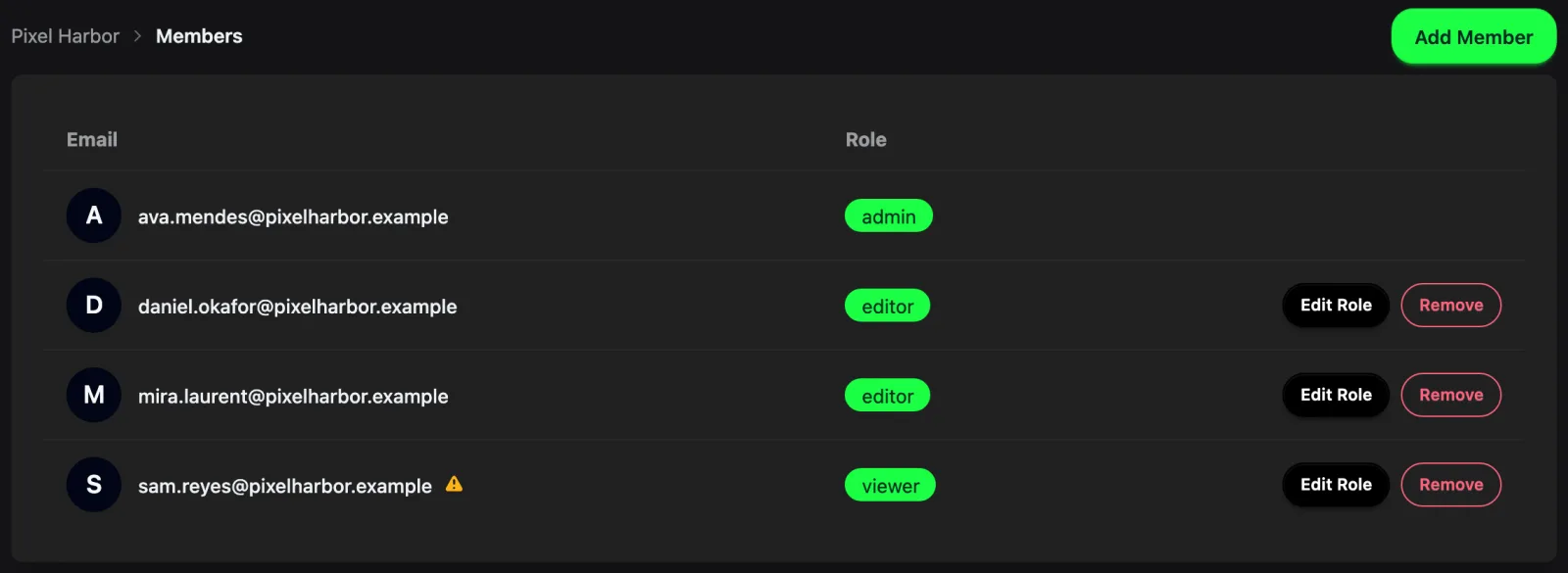
Managing members
Add Member takes an email address and a role. If that email already has a Jest developer account, the member gets access immediately. If it doesn't, Jest creates the account and emails an invitation to register — until they sign in for the first time, their row carries a warning icon.
Edit Role and Remove take effect immediately: a member who loses access is stopped at their next action, even with the console already open.
Keep at least one admin on every team — without one, nobody can manage members, team settings, or payouts. The member list hides the role and remove controls on your own row, but nothing prevents a team from ending up without an admin, so add the replacement before you step down.
What each role can do
| Viewer | Editor | Admin | |
|---|---|---|---|
| See the team's apps, builds, analytics, events, financials, and user feedback | ✓ | ✓ | ✓ |
| Look up an individual user's app state | ✓ | ✓ | ✓ |
| Create apps, edit their properties, and upload and activate builds | ✓ | ✓ | |
| Manage products, subscriptions, and images | ✓ | ✓ | |
| Read and regenerate an app's secrets | ✓ | ✓ | |
| Submit an app for review | ✓ | ✓ | |
| Post as the app in Jest chat | ✓ | ✓ | |
| Add members, change their role, and remove them | ✓ | ||
| Edit team settings and sign the platform agreements | ✓ | ||
| Archive an app | ✓ | ||
| Run campaigns and read reporting in Ads Manager | ✓ | ||
| See earnings, statements, and payouts | ✓ |
Two things to note about the split:
- Per-app revenue is not admin-only. Every member can open an app's Financials tab and see what it sold. Only admins see the team's aggregated Earnings, statements, and payouts.
- Viewers cannot read an app's shared secret. It authenticates your app server, so it is limited to the roles that can change the app.
An assistant connected over MCP works within the roles of the account that connected it, narrowed further by the access level and upload setting chosen for that connection. It can never do more than you can.