Payments
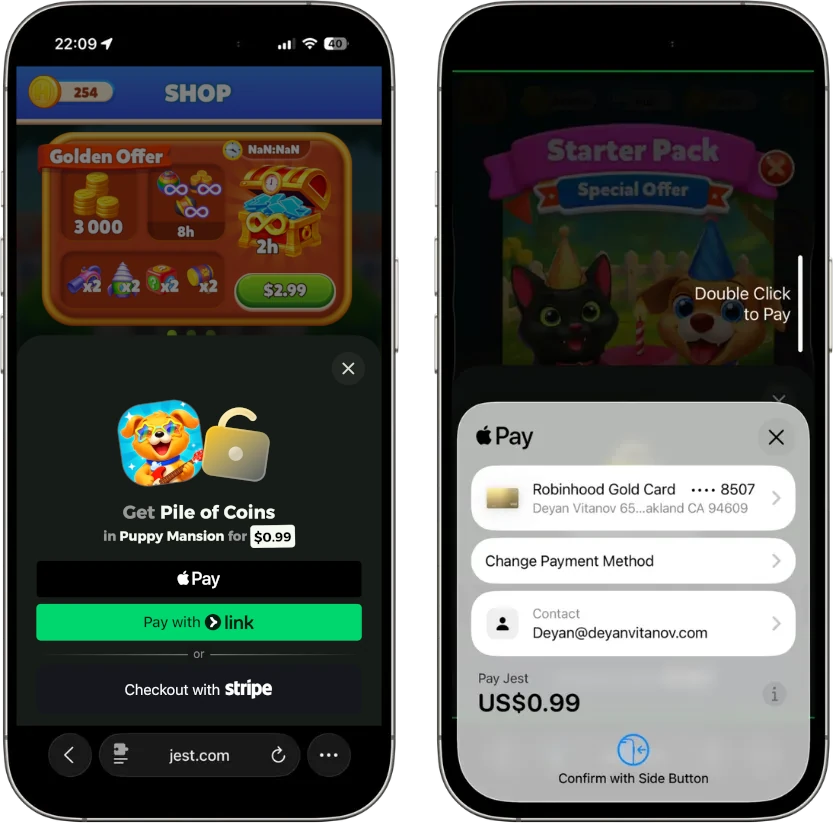
The Jest platform allows developers to sell in-app products using the payments SDK methods. We enable these transactions primarily through popular digital wallets, such as Apple Pay and Google Wallet. Jest handles the entire checkout process with the user, while your app is responsible for granting the purchased items and confirming the purchase.
Pricing
Users purchase in-app products in USD on the Jest platform.
As a developer, you define the products and USD prices available in your app. When your app starts a purchase, Jest handles checkout end-to-end with the user.
When using a sandbox user, users see real product prices in the app UI, but the platform checkout modal makes clear that no charge will be made. The resulting PurchaseData records 0 in price and carries a sandbox flag so you can recognize a test purchase without inferring it from the price. See Recognize sandbox purchases.
Purchase lifecycle
A purchase represents a single successful checkout of a product by a specific user.
- Display available products to the user (see List products).
- Start checkout with the product
sku(see Start a purchase). - If checkout succeeds, the SDK returns an incomplete purchase containing a
purchaseToken. - Grant the purchased item in your app, then confirm the purchase using the
purchaseToken(see Grant and confirm a purchase). - Until completed, the purchase remains incomplete and will continue to be returned as an incomplete purchase (for example, after a crash). See Recover incomplete purchases.
Checkout cancellation and error handling are managed by your app; see Start a purchase for details.
Happy path (checkout succeeds)
Recovery (startup reconciliation)
If checkout succeeds but the app crashes, loses connectivity, or is closed before the purchase is confirmed, the purchase remains incomplete. The platform will keep returning it as an incomplete purchase until you confirm it.
If hasMore is true, continue fetching until all incomplete purchases are processed.
How to use the SDK
Payload shapes
Where the SDK references PurchaseData, it contains:
- HTML5
- Unity
{
  purchaseToken: string; // required to call `completePurchase(...)`
  productSku: string; // the product purchased
  createdAt: number; // JS timestamp (ms since epoch)
  completedAt: number | null; // JS timestamp (ms since epoch); null until confirmed
  estimatedRevenue: number; // the (estimated) USD share of revenue from this purchase that the publisher will receive
  price: number; // the purchase price in the currency specified in `currency`
  currency: string; // the currency (ISO 4217 code) the price is in
  sandbox?: true; // present only for sandbox-user or simulator purchases
}
We will soon be deprecating credits for product purchases.
Prices will be specified by price and currency properties.
public class PurchaseData
{
    public string purchaseToken;        // Required to call CompletePurchase
    public string productSku;           // The product purchased
    public decimal credits;             // (Deprecated, use price and currency instead) Total USD value
    public long createdAt;              // Unix timestamp (ms since epoch)
    public long? completedAt;           // Unix timestamp; null until confirmed
    public decimal estimatedRevenue;    // The (estimated) USD share of revenue from this purchase that the publisher will receive
    public decimal price;               // The purchase price in the currency specified in `currency`
    public string currency;             // The currency (ISO 4217 code) the price is in
    public bool? Sandbox;               // Present only for sandbox-user or simulator purchases
}
For sandbox purchases, credits (deprecated) is recorded as 0 alongside price.
Set up products
Set up and price products using the Jest Developer Console.
For more information, see Manage products.
List products
To retrieve the products available for purchase in your app, list the products.
- HTML5
- Unity
JestSDK.payments.getProducts()
// Returns a promise resolving to an array of products
const products = await JestSDK.payments.getProducts();
JestSDK.Instance.Payment.GetProducts()
var payment = JestSDK.Instance.Payment;
var productsTask = payment.GetProducts();

await productsTask;
if (productsTask.IsCompleted)
{
    List<Payment.Product> products = productsTask.Result;
    foreach (var product in products)
    {
        Debug.Log($"Product: {product.name} ({product.sku}) - {product.price} {product.currency}");
    }
}
Products include the following information:
| Property | Note |
|---|---|
sku | An identifier for the product, configured when set up in the Developer Console. |
name | The display name of the product that may be shown to the user during checkout. |
description | Nullable short description of the product that may be shown to the user during checkout. |
price | Product price in the currency specified in currency |
currency | The currency code (ISO 4217) the price is in |
Displaying prices
The way product prices are displayed should be based on the price and the currency.
currency is an ISO 4217 which can be used to select the correct currency symbol or formatting.
Start a purchase
Start a purchase with the sku of a product returned when listing products.
The method returns one of the following results:
Success
resultis"success", withpurchase(aPurchaseData) andpurchaseSigned(a string) populated. Checkout completed successfully. The returned purchase is incomplete and must be granted and confirmed by your app.
Cancellation
resultis"cancel". The user canceled the checkout flow.
Error
resultis"error", witherrorcontaining one of the following error codes:internal_error- A transient error occurred. Your app may retry the purchase.invalid_product- The requestedskuis not available for purchase. Do not retry with the samesku. If this persists and the product configuration appears correct, contact support.
Any other error (for example, a timeout) should be handled by your app and may be retried.
In mock mode, you can simulate each outcome using the JestSDK debug menu.
- HTML5
- Unity
JestSDK.payments.beginPurchase({ productSku })
The result is one of { result: "success"; purchase: PurchaseData; purchaseSigned: string }, { result: "cancel" }, or { result: "error"; error: string }.
beginPurchase may also throw (for example, due to a timeout). Treat thrown errors as retryable.
const products = await JestSDK.payments.getProducts();
const product = products[0];

const beginPurchaseResult = await JestSDK.payments.beginPurchase({
  productSku: product.sku,
});

if (beginPurchaseResult.result === "cancel") {
  // Handle cancellation with UI feedback
  return;
}

if (beginPurchaseResult.result === "error") {
  // Handle the error with different product or a retry
  return;
}

// result === "success"
const { purchase, purchaseSigned } = beginPurchaseResult;
JestSDK.Instance.Payment.BeginPurchase(sku)
The method returns a PurchaseResult whose result, purchase, purchaseSigned, and error fields carry the outcomes described above.
var payment = JestSDK.Instance.Payment;
var purchaseTask = payment.BeginPurchase("gems_100");

await purchaseTask;

if (purchaseTask.Result.result == "cancel")
{
    // Handle cancellation with UI feedback
    return;
}

if (purchaseTask.Result.result == "error")
{
    Debug.LogError($"Purchase failed: {purchaseTask.Result.error}");
    // Handle the error with different product or a retry
    return;
}

// result == "success"
var purchase = purchaseTask.Result.purchase;
var purchaseSigned = purchaseTask.Result.purchaseSigned;
Debug.Log($"Purchase successful: {purchase.productSku}");
Grant and confirm a purchase
When a purchase returns success, your app must:
- Grant the purchased product to the user.
- Confirm the purchase using its
purchaseToken.
Until the purchase is confirmed, it remains incomplete and will continue to be returned as an incomplete purchase.
Only confirm a purchase after you have durably granted it (for example, your backend has verified the signed data and recorded the grant). If you confirm first and then crash before granting, recovering incomplete purchases cannot restore the purchase because it's already confirmed.
Confirming a purchase returns:
- Success (
resultis"success"). - Error (
resultis"error") witherrorbeing one ofinternal_errororinvalid_token:internal_error: a transient error occurred; retry.invalid_token: the token is not valid (already confirmed, wrong user, etc.); don't retry with the same token.
If you have a backend, treat purchase.purchaseToken as an idempotency key and store it so you never grant the same purchase twice, including during retries or recovery flows.
- HTML5
- Unity
JestSDK.payments.completePurchase({ purchaseToken })
Returns { result: "success" } or { result: "error"; error: "internal_error" | "invalid_token" }.
// Recommended: send `purchaseSigned` to your backend to verify the purchase and grant the item.
// Store `purchase.purchaseToken` on your backend as an idempotency key to prevent double grants.
await verifyAndGrantPurchaseServerSide({ purchaseSigned });

// Only confirm after the grant succeeded.
const completePurchaseResult = await JestSDK.payments.completePurchase({
  purchaseToken: purchase.purchaseToken,
});

if (completePurchaseResult.result === "error") {
  if (completePurchaseResult.error === "internal_error") {
    // Retry later. An incomplete purchase is safe: getIncompletePurchases() returns it again.
  } else {
    // invalid_token: don't retry with the same token.
  }
}
JestSDK.Instance.Payment.CompletePurchase(purchaseToken)
Returns a PurchaseCompleteResult with result and, on error, error populated.
// Recommended: send purchaseSigned to your backend to verify and grant
await VerifyAndGrantPurchaseServerSide(purchaseSigned);

// Only confirm after the grant succeeded
var completeTask = JestSDK.Instance.Payment.CompletePurchase(purchase.purchaseToken);
await completeTask;

if (completeTask.Result.result == "error")
{
    if (completeTask.Result.error == "internal_error")
    {
        // Retry later. Leaving the purchase incomplete is safe.
    }
    else
    {
        // invalid_token: don't retry with the same token.
    }
}
Client-only grant (not recommended)
If your app has no backend, you can grant based on purchase.productSku and then confirm the purchase. This approach is vulnerable to tampering and should only be used for prototypes or internal testing. Never ship your app's shared secret in the client.
- HTML5
- Unity
grantItem(purchase.productSku);

await JestSDK.payments.completePurchase({
  purchaseToken: purchase.purchaseToken,
});
GrantItem(purchase.productSku);

await JestSDK.Instance.Payment.CompletePurchase(purchase.purchaseToken);
Recover incomplete purchases
Your app must check for incomplete purchases every time it starts. This is what makes purchases resilient to crashes, power loss, and network failures between a successful checkout and confirming the purchase.
To recover incomplete purchases, fetch them on startup and:
- Grant any incomplete purchases using the
productSku. - Confirm them using the corresponding
purchaseToken.
The response is capped (currently 50 purchases per call). If hasMore is true, confirm the returned purchases and call again until it is false.
- HTML5
- Unity
JestSDK.payments.getIncompletePurchases()
let result: {
  hasMore: boolean;
  purchases: PurchaseData[]; // see 'Payload shapes'
  purchasesSigned: string;
};

do {
  result = await JestSDK.payments.getIncompletePurchases();

  // Recommended: send `result.purchasesSigned` to your backend; verify and grant idempotently.
  const verified = await verifyAndGrantPurchasesServerSide({
    purchasesSigned: result.purchasesSigned,
  });

  for (const purchase of verified.purchases) {
    // At this point your backend has verified and granted this purchase.
    const completion = await JestSDK.payments.completePurchase({
      purchaseToken: purchase.purchaseToken,
    });

    if (completion.result === "error") {
      if (completion.error === "internal_error") {
        // Retry later. Leaving it incomplete is safe; it will be returned again.
        return;
      }

      // invalid_token: don't retry with the same token.
    }
  }
} while (result.hasMore);
JestSDK.Instance.Payment.GetIncompletePurchases()
Returns an IncompletePurchasesResponse with purchases, purchasesSigned, and hasMore.
var payment = JestSDK.Instance.Payment;
IncompletePurchasesResponse result;

do
{
    var incompletePurchasesTask = payment.GetIncompletePurchases();
    await incompletePurchasesTask;
    result = incompletePurchasesTask.Result;

    // Recommended: send purchasesSigned to your backend to verify and grant
    await VerifyAndGrantPurchasesServerSide(result.purchasesSigned);

    foreach (var purchase in result.purchases)
    {
        var completeTask = payment.CompletePurchase(purchase.purchaseToken);
        await completeTask;

        if (completeTask.Result.result == "error")
        {
            if (completeTask.Result.error == "internal_error")
            {
                // Retry later. Leaving it incomplete is safe.
                return;
            }
            // invalid_token: don't retry with the same token.
        }
    }
} while (result.hasMore);
Client-only recovery (not recommended)
If your app has no backend, you can iterate the returned purchases, grant based on purchase.productSku, and then confirm each purchaseToken. This is vulnerable to tampering. Never ship your app's shared secret in the client.
Recognize sandbox purchases
Purchases made by a sandbox user, and purchases driven from the Developer Console simulator, carry a sandbox flag set to true. The flag is absent on real purchases, so check for it being true; it travels inside the signed token too — your backend can trust it after verifying the signature.
Sandbox purchases are also priced at 0; simulator purchases keep the price you configured, so the flag is the only reliable signal there.
- HTML5
- Unity
The flag is the optional sandbox field on PurchaseData, so purchase.sandbox === true is the check.
const result = await JestSDK.payments.beginPurchase({ productSku: "gem_pack" });

if (result.result === "success") {
  // Grant either way; only the bookkeeping differs.
  await grantItem(result.purchase.productSku);

  if (!result.purchase.sandbox) {
    reportRevenue(result.purchase.price, result.purchase.currency);
  }
}
The flag is the nullable Sandbox property on PurchaseData, so purchase.Sandbox == true is the check.
var payment = JestSDK.Instance.Payment;
var purchaseTask = payment.BeginPurchase("gem_pack");
await purchaseTask;

if (purchaseTask.Result.result == "success")
{
    var purchase = purchaseTask.Result.purchase;

    // Grant either way; only the bookkeeping differs.
    GrantItem(purchase.productSku);

    if (purchase.Sandbox != true)
    {
        ReportRevenue(purchase.price, purchase.currency);
    }
}
Grant the item either way — that is what makes the sandbox useful for testing your full purchase flow. Use the flag to keep test traffic out of anything that counts real money: revenue analytics, leaderboards of top spenders, lifetime-value models, or payouts.
Signed purchase data (JWT)
Starting a purchase and recovering incomplete purchases both return purchase data in two forms:
- As plain objects (
purchase/purchases) for convenience. - As signed tokens (
purchaseSigned/purchasesSigned) in the form of a signed JSON Web Token (JWT).
- HTML5
- Unity
beginPurchase returns purchase and purchaseSigned; getIncompletePurchases returns purchases and purchasesSigned.
BeginPurchase returns a PurchaseResult with purchase and purchaseSigned; GetIncompletePurchases returns an IncompletePurchasesResponse with purchases and purchasesSigned.
The data inside the signed token is equivalent to the plain object. For critical actions such as granting items or crediting accounts, you must only trust the signed token after verifying its signature.
You can use any standard JWT/JWS library to verify the token signature using your app's shared secret and extract the purchase data.
Failure to verify the signed token can leave your app vulnerable to exploitation.
Shared secret
Each app has a shared secret configured in the Developer Console (see Apps > Secrets). This secret is provided as a base64-encoded string and must be kept confidential between you and the Jest platform.
If the shared secret is ever leaked, rotate it immediately by generating a new one in the Developer Console.
Signed payload shapes
Signed JWT payload from starting a purchase (purchaseSigned):
{
  purchase: PurchaseData; // a single purchase
  aud: string; // game ID as the 'audience' claim
  sub: string; // player ID as the 'subject' claim
}
Signed JWT payload from recovering incomplete purchases (purchasesSigned):
{
  purchases: PurchaseData[]; // an array of purchases
  aud: string; // game ID as the 'audience' claim
  sub: string; // player ID as the 'subject' claim
}
Signed payloads may include additional standard JWT claims (such as iat).
Verifying and decoding (server-side)
Use a standard JWT/JWS library on your backend to verify the token signature and decode its payload.
The verification process is the same as for the signed player token. For server-side verification examples in other languages, see Player.
To ensure the purchase data is correct and applies to the expected app and user, validate the following aud (audience) and sub (subject) claims:
aud: your game ID (available in the Developer Console)sub: the player ID (see Player)
If you don't provide these as parameters to your JWT library, you are responsible for verifying them on the decoded payload.
An example (Node.js) using jose:
This example is server-side.
import { jwtVerify } from "jose";

// This value should be kept secret and NOT checked into source control
// or used client-side.
const sharedSecret = "<your game's shared secret>";
const gameId = "<your game id>";
const playerId = "<player id of the current player>";

// The signed purchase token (`purchaseSigned`) returned by the SDK.
// Send it to your server *without* any modification.
const purchaseSigned = "<token>";

const verified = await jwtVerify(
  purchaseSigned,
  Buffer.from(sharedSecret, "base64"),
  {
    audience: gameId,
    subject: playerId,
  },
);

// The verified payload contains { purchase, aud, sub } and standard JWT claims.
console.log(verified.payload);
We strongly recommend using an established library to verify JWTs rather than implementing verification yourself. If for whatever reason this doesn't happen, your implementation must follow the JWT spec and current best practices.