Notifications
One of the most powerful and unique features of Jest is notifications, which allow developers to schedule messages to re-engage users and drive retention. Using the Jest SDK, you can customize a notification’s text, call to action (CTA), and image.
The Jest platform handles messaging infrastructure and delivery, subsidizing 100% of messaging costs and abstracting away operational complexity. This includes managing regulated messaging requirements such as consent collection, required disclosures, and robust opt-out mechanisms.
For guidance on designing effective notification strategies, copywriting, and scheduling patterns, see Notifications best practices.
Notification mechanics
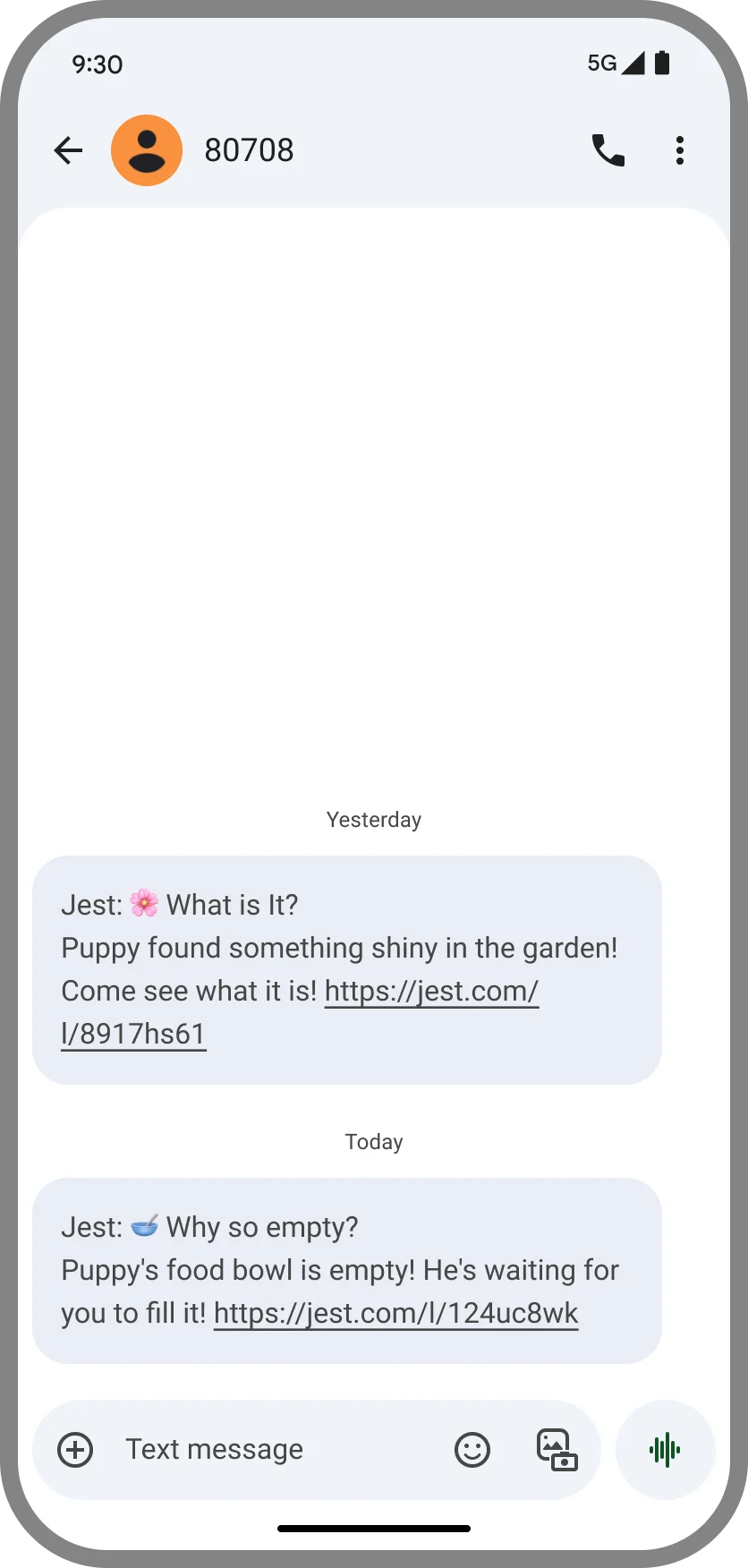
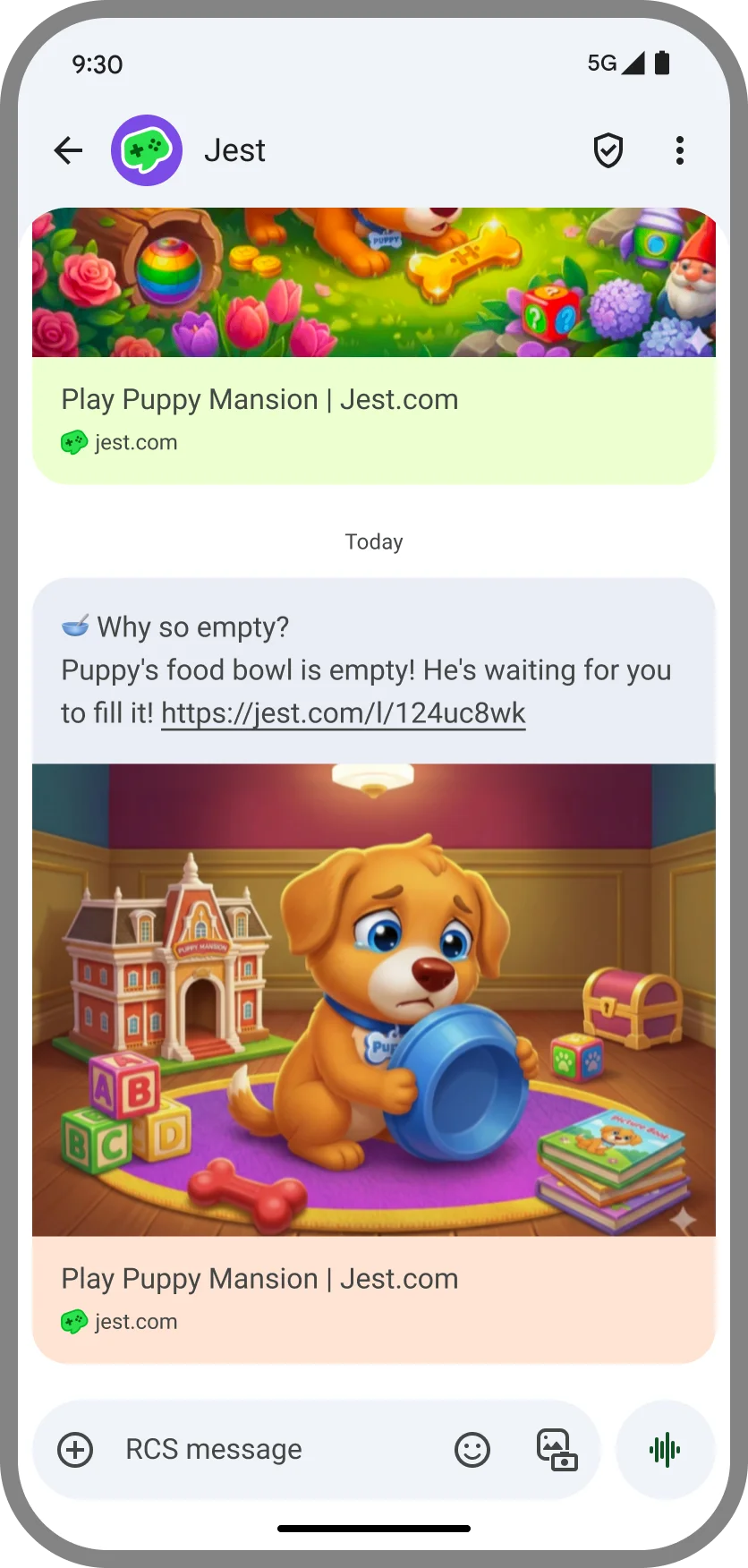
Apps and games use the Jest SDK notification methods to schedule notifications, which get delivered over two channels: the platform Home tab and SMS / RCS text messages.
Home tab
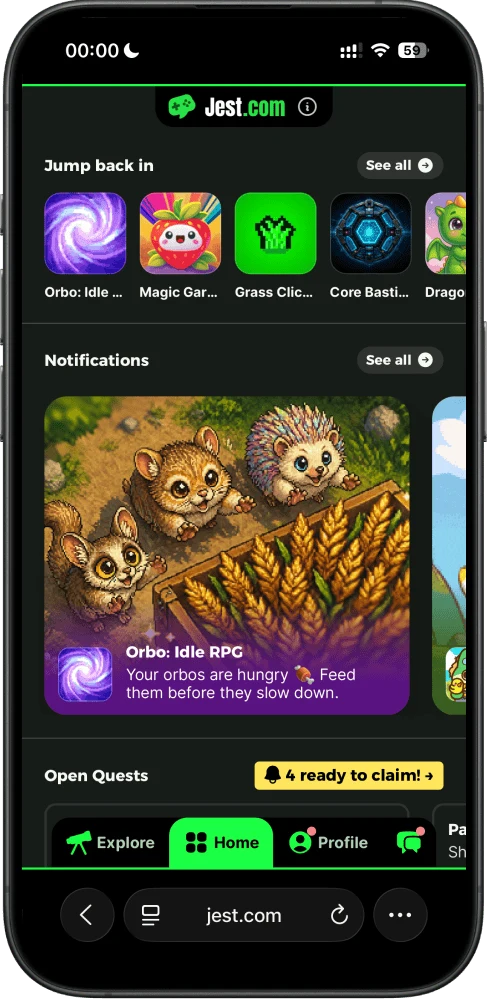
When your app is Approved and set to Public, your scheduled notifications will appear on Jest.com's Home tab. This is the central user hub and drives over 50% of app entries.
The Home tab experience includes:
- Scheduled delivery: Notifications surface on Home once their scheduled time has passed. Treat that time as the earliest Home is guaranteed to show them, not an exact moment: a notification the platform pulls forward for messaging delivery can appear sooner, so don't rely on Home to keep time-sensitive content hidden.
- Focused display: Only one notification is displayed at a time to maximize visibility.
- Rich customization: A flexible interface allows you to tailor the notification text, images, and videos to your needs.
SMS / RCS messages
Jest may also deliver scheduled notifications directly to a user's messaging inbox. The messaging delivery experience includes:
- Dynamic channel routing: Messages are delivered via SMS or RCS, automatically selected based on platform availability and the user's messaging settings.
- Daily limit: Jest selects at most one scheduled notification per user, per day, across all apps on the platform.
- Smart selection: The platform chooses the notification most likely to convert, factoring in the
priorityprovided by the SDK. - Optimized timing: Delivery time is personalized for each user based on your scheduled time, observed engagement patterns, and strict adherence to compliance requirements.
Notifications API
Here is some example code to demonstrate scheduling notifications on the Jest gaming platform.
The Jest platform will only send notifications to registered users. You can check a user’s status with the player API and prompt users to log in via the SDK.
Schedule a notification
Notifications can be scheduled from today (D0) up to 7 days ahead: scheduledInDays must be between 0 and 7 days (inclusive), and an exact scheduled date must be within the next 7 days. scheduledInDays: 0 lands 10 minutes from now, so a same-day notification is far enough ahead to be delivered. Length limits: ctaText must be non-empty and at most 50 characters, title at most 200 characters, and body must be non-empty and at most 2000 characters. Values outside these ranges are rejected.
Notifications can be scheduled in one of two ways, and exactly one must be used per call:
- Exact scheduling using a specific date and time, which ensures the notification becomes eligible for delivery after that moment. Note that delivery is not guaranteed at the exact scheduled moment, as messaging must comply with mandated quiet hours and other delivery constraints.
- Fuzzy scheduling using
scheduledInDays, which allows the platform to determine an appropriate delivery time for each user.
Exact scheduling is suited for fixed events or deadlines where timing matters. Fuzzy scheduling is intended for notifications that are relevant within a given day, allowing the platform to determine an appropriate delivery time for each user.
Higher-priority notifications are weighted more heavily when selecting which notification to send over SMS / RCS or display in the Home tab. The default priority is medium.
- HTML5
- Unity
JestSDK.notifications.scheduleNotification(options)
To schedule a notification, use this method. Exact scheduling uses scheduledAt; fuzzy scheduling uses scheduledInDays. Values outside the limits above throw an INVALID_ARGUMENTS error.
// Schedule for a specific date/time (exact scheduling)
JestSDK.notifications.scheduleNotification({
  body: "Your energy is full!",
  ctaText: "Play Now",
  priority: "high",
  identifier: "energy_full",
  scheduledAt: new Date(Date.now() + 4 * 60 * 60 * 1000),
});

// Schedule using fuzzy timing (0-7 days from now)
JestSDK.notifications.scheduleNotification({
  body: "We miss you! Come back for a special reward.",
  ctaText: "Claim Reward",
  priority: "medium",
  identifier: "comeback_day3",
  scheduledInDays: 3,
});
options properties
| Property | Type | Required | Description |
|---|---|---|---|
body | string | Yes | The main text of the notification. Must be 1-2000 characters. |
ctaText | string | Yes | Call-to-action button text. Must be 1-50 characters. |
identifier | string | Yes | Unique identifier for rescheduling or unscheduling. |
scheduledAt | Date | * | Exact date/time to schedule. Must be within 7 days. Mutually exclusive with scheduledInDays. |
scheduledInDays | number | * | Days from now to schedule (0-7); 0 is later today. Mutually exclusive with scheduledAt. |
title | string | No | Optional title shown above the body. Must be at most 200 characters. |
priority | 'low' | 'medium' | 'high' | 'critical' | No | Priority level. Default is 'medium'. |
assetReference | string | No | Reference to a pre-approved asset (image or video). |
entryPayload | Record<string, unknown> | No | Custom data payload attached to the notification. |
* Either scheduledAt or scheduledInDays must be provided, but not both.
RichNotifications.ScheduleNotification(options)
To schedule a notification, use this method with the Options class. Exact scheduling uses date; fuzzy scheduling uses scheduledInDays. The method returns a JestSDKTask for JavaScript bridge dispatch; see Error handling for what it validates locally.
var notifications = JestSDK.Instance.RichNotifications;

// Schedule for specific date/time (exact scheduling)
await notifications.ScheduleNotification(new RichNotifications.Options
{
    body = "Your energy is full!",
    ctaText = "Play Now",
    notificationPriority = RichNotifications.Severity.High,
    identifier = "energy_full",
    date = DateTime.Now.AddHours(4)
});

// Schedule using fuzzy timing (0-7 days from now)
await notifications.ScheduleNotification(new RichNotifications.Options
{
    body = "We miss you! Come back for a special reward.",
    ctaText = "Claim Reward",
    notificationPriority = RichNotifications.Severity.Medium,
    identifier = "comeback_day3",
    scheduledInDays = 3
});
RichNotifications.Options properties
| Property | Type | Required | Description |
|---|---|---|---|
body | string | Yes | The main text of the notification. Must be 1-2000 characters. |
ctaText | string | Yes | Call-to-action button text. Must be 1-50 characters. |
identifier | string | Yes | Unique identifier for rescheduling or unscheduling. |
date | DateTime | * | Exact date/time to schedule. Must be within 7 days. Mutually exclusive with scheduledInDays. |
scheduledInDays | int? | * | Days from now to schedule (0-7); 0 is later today. Mutually exclusive with date. |
title | string | No | Optional title shown above the body. Must be at most 200 characters. |
notificationPriority | Severity | No | Priority level: Low, Medium, High, or Critical. Default is Medium. |
assetReference | string | No | Reference to a pre-approved asset (image or video). |
entryPayloadData | Dictionary<string, object> | No | Custom data payload attached to the notification. |
* Either date or scheduledInDays must be provided, but not both.
RichNotifications.Severity
public enum Severity
{
    Low,      // Low priority notification
    Medium,   // Medium priority notification
    High,     // High priority notification
    Critical  // Critical priority notification
}
If you schedule a notification with an existing identifier, the original notification will be unscheduled and replaced with the new one. You don't need to unschedule the original notification first.
Attach an asset
To attach an asset (image or video) to your notification, first upload and submit it for approval in the Manage images section of the Developer Console. Only approved assets can be referenced in notifications.
If no asset is set, or the assetReference is invalid, unapproved, or archived, the notification uses your app’s Hero image, configured in the Developer Console; an invalid reference also logs an error in the Events page.
- HTML5
- Unity
Set assetReference in the scheduleNotification options.
JestSDK.notifications.scheduleNotification({
  body: "Your daily reward is ready!",
  ctaText: "Collect",
  priority: "medium",
  identifier: "daily_reward",
  scheduledInDays: 1,
  assetReference: "daily_reward_banner",
});
Set assetReference on RichNotifications.Options.
await notifications.ScheduleNotification(new RichNotifications.Options
{
    body = "Your daily reward is ready!",
    ctaText = "Collect",
    notificationPriority = RichNotifications.Severity.Medium,
    identifier = "daily_reward",
    scheduledInDays = 1,
    assetReference = "daily_reward_banner"
});
Attach an entry payload
You can attach custom data to notifications that will be passed to the app when the user opens the notification. See Entry payload for how to read it when the app starts.
- HTML5
- Unity
Set entryPayload in the scheduleNotification options.
JestSDK.notifications.scheduleNotification({
  body: "Your farm needs attention!",
  ctaText: "Visit Farm",
  priority: "high",
  identifier: "farm_reminder",
  scheduledInDays: 1,
  entryPayload: {
    notification_type: "farm_reminder",
    day: "1",
  },
});
Set entryPayloadData on RichNotifications.Options.
await notifications.ScheduleNotification(new RichNotifications.Options
{
    body = "Your farm needs attention!",
    ctaText = "Visit Farm",
    notificationPriority = RichNotifications.Severity.High,
    identifier = "farm_reminder",
    scheduledInDays = 1,
    entryPayloadData = new Dictionary<string, object>
    {
        { "notification_type", "farm_reminder" },
        { "day", 1 }
    }
});
Unschedule a notification
To unschedule an already scheduled notification, pass the identifier it was scheduled with.
- HTML5
- Unity
JestSDK.notifications.unscheduleNotification(options)
JestSDK.notifications.unscheduleNotification({
  identifier: "my_notification_id",
});
RichNotifications.UnscheduleNotification(identifier)
The method throws for local validation errors, then returns a JestSDKTask for JavaScript bridge dispatch.
var notifications = JestSDK.Instance.RichNotifications;

await notifications.UnscheduleNotification("energy_full");
Error handling
- HTML5
- Unity
scheduleNotification and unscheduleNotification can throw an INVALID_ARGUMENTS error if the provided arguments do not match the required schema.
ScheduleNotification and UnscheduleNotification throw for local shape validation errors, then return a JestSDKTask for JavaScript bridge dispatch. Platform policy limits are enforced by the JavaScript SDK and server, and task completion is not confirmation that the platform will deliver the notification.
In addition, notifications may be blocked due to:
- Invalid or unapproved image references
- Content that violates platform moderation rules
Blocked notifications are logged in the Events → Moderation or Events → Errors tabs in the Developer Console. End users do not see internal error codes.
Moderation and delivery constraints
Notifications are subject to platform review and moderation. Content that violates the Acceptable Use Policy may be blocked from delivery. For more details, see Review and moderation.