Platform login
Guest sessions can be lost when a user closes the app or their browser. To prevent this, you can prompt users to register or sign in on the Jest platform. Registered users are able to receive notifications and won’t risk losing their progress. For more details, see Notifications.
Converting guests into registered users is one of the most important steps in the user funnel. Improvements at this stage directly translate into higher retention, more active users, and increased revenue.
There are several ways to prompt users to register or sign in, depending on what best fits your app or game experience. The platform can also automatically trigger prompts, though this behavior can be disabled if needed. See the HTML5 or Unity SDK initialization options for more information.
The registration flow is completed via SMS or RCS, after which users are seamlessly redirected back into the app.
This document covers technical requirements; see also the User acquisition guide for best practices.
Platform registration
The platform includes a built-in registration flow that can be triggered directly from your app. It is visually consistent with the rest of the platform and is the easiest option to implement.
This is also the flow used by the platform’s automatic registration prompts.
After initializing the platform, you can trigger the registration flow at the appropriate moment. Only guest users should be prompted to register.
Users can either dismiss the prompt or complete the registration flow. In both cases, no additional handling is required from the app.
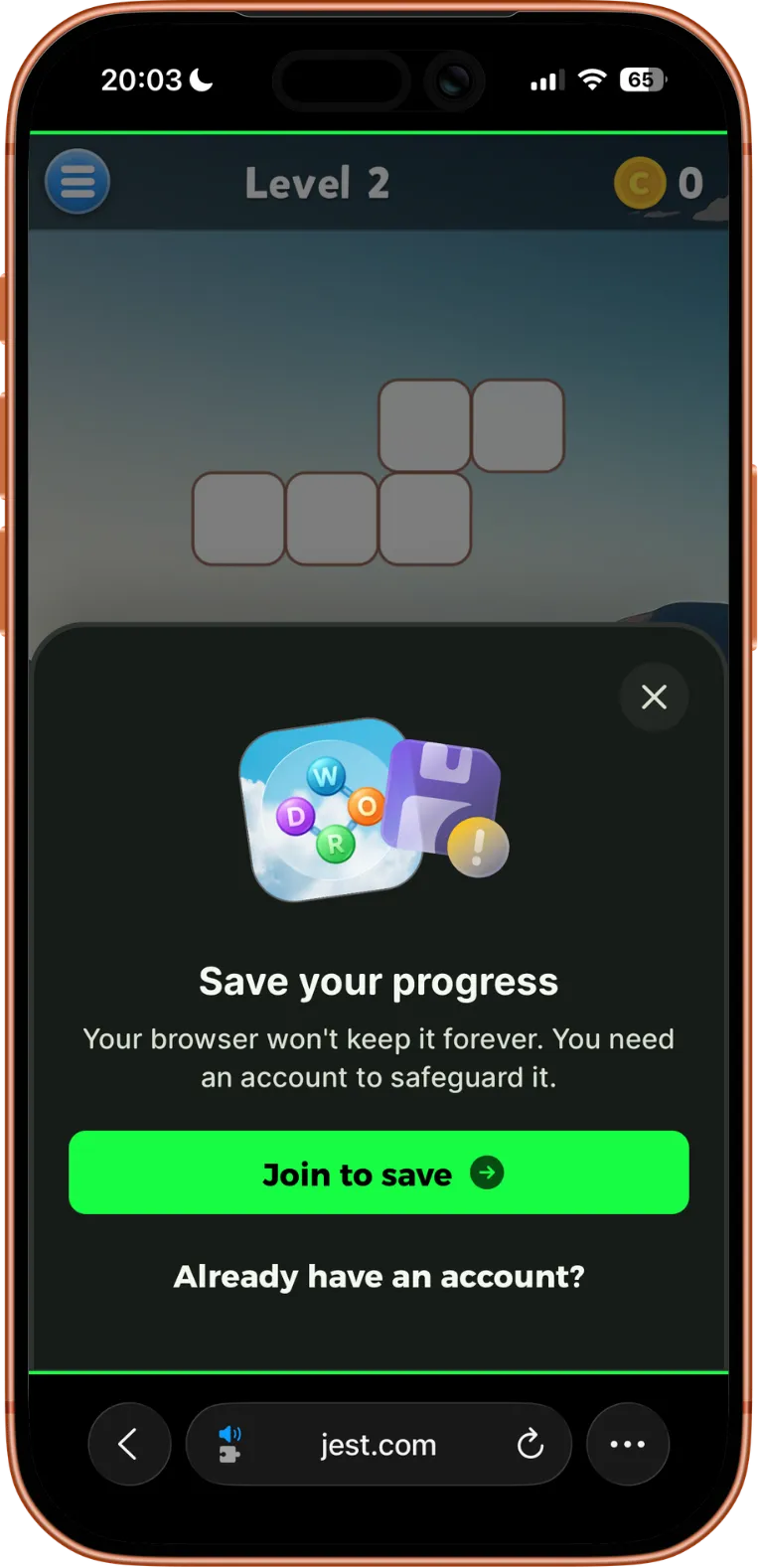
Trigger the registration flow
- HTML5
- Unity
JestSDK.login(options?)
login(options?: {
  entryPayload?: Record<string, unknown>;
}): Promise<void>;
login() returns a promise that resolves once the login popup is dismissed, and resolves immediately if the user is already registered. It rejects if the SDK is not initialized or the entry payload is invalid.
const player = JestSDK.getPlayer();

if (!player.registered) {
  // Guest player — prompt registration
  JestSDK.login();
}
You can await it to run logic after the user closes the popup:
await JestSDK.login();
// runs after the login popup is dismissed
JestSDK.getPlayer();
Options:
| Name | Type | Description |
|---|---|---|
entryPayload | Record<string, unknown> | Optional. The entry payload to pass to the app on login. |
JestSDK.Instance.Login(entryPayload)
JestSDKTask Login(Dictionary<string, object> entryPayload = null)
Returns a JestSDKTask that completes when the login popup is dismissed, or immediately and without error if the player is already registered. Invalid entry payloads fault the returned task rather than throwing synchronously.
var player = JestSDK.Instance.Player;

if (!player.isRegistered) {
  // Guest player - prompt to register
  JestSDK.Instance.Login();
}
You can await the task to run code after the popup is dismissed; fire-and-forget also works:
await JestSDK.Instance.Login();
// Runs after the player dismisses the login popup.
Options:
| Name | Type | Description |
|---|---|---|
entryPayload | Dictionary<string, object> | Optional. The entry payload to pass to the app on login. |
Pass an entry payload
The login call also accepts an optional entry payload, which is returned to the app after the user completes login:
- HTML5
- Unity
const player = JestSDK.getPlayer();

if (!player.registered) {
  JestSDK.login({
    entryPayload: {
      source: "after_tutorial",
    },
  });
}
var player = JestSDK.Instance.Player;

if (!player.isRegistered) {
  JestSDK.Instance.Login(new Dictionary<string, object>
  {
    { "source", "level_complete" },
    { "level", 5 }
  });
}
This can be useful for tracking where the registration was initiated or restoring context after the user returns to the app. See Entry payload for more details.
Customized registration flow
In addition to the default platform popup, the SDK allows you to build a fully customized registration experience by showing the registration overlay yourself. This approach gives you greater control over the UI and lets you better integrate the flow into your app.
All requirements and functionality remain the same as with the platform registration flow. The key difference is that your app is responsible for rendering and managing the user interface.
To ensure regulatory compliance, the platform automatically displays the required legal text alongside a registration overlay close button. This overlay is designed to be minimal, unobtrusive, and visually neutral to fit naturally within your app.
To maintain compliance, your app must strictly adhere to the following:
- Do not attempt to replace, hide, or recreate the overlay close button, which is provided by the platform automatically.
- Do not block or interfere with the registration skipping process.
- Do not attempt to obscure or bypass the platform overlay.
Your app is responsible for handling the rest of the flow, giving you full control over the user experience. Showing the overlay gives you two actions to attach to your in-app UI: one that initiates the login flow, and one that programmatically closes the overlay.
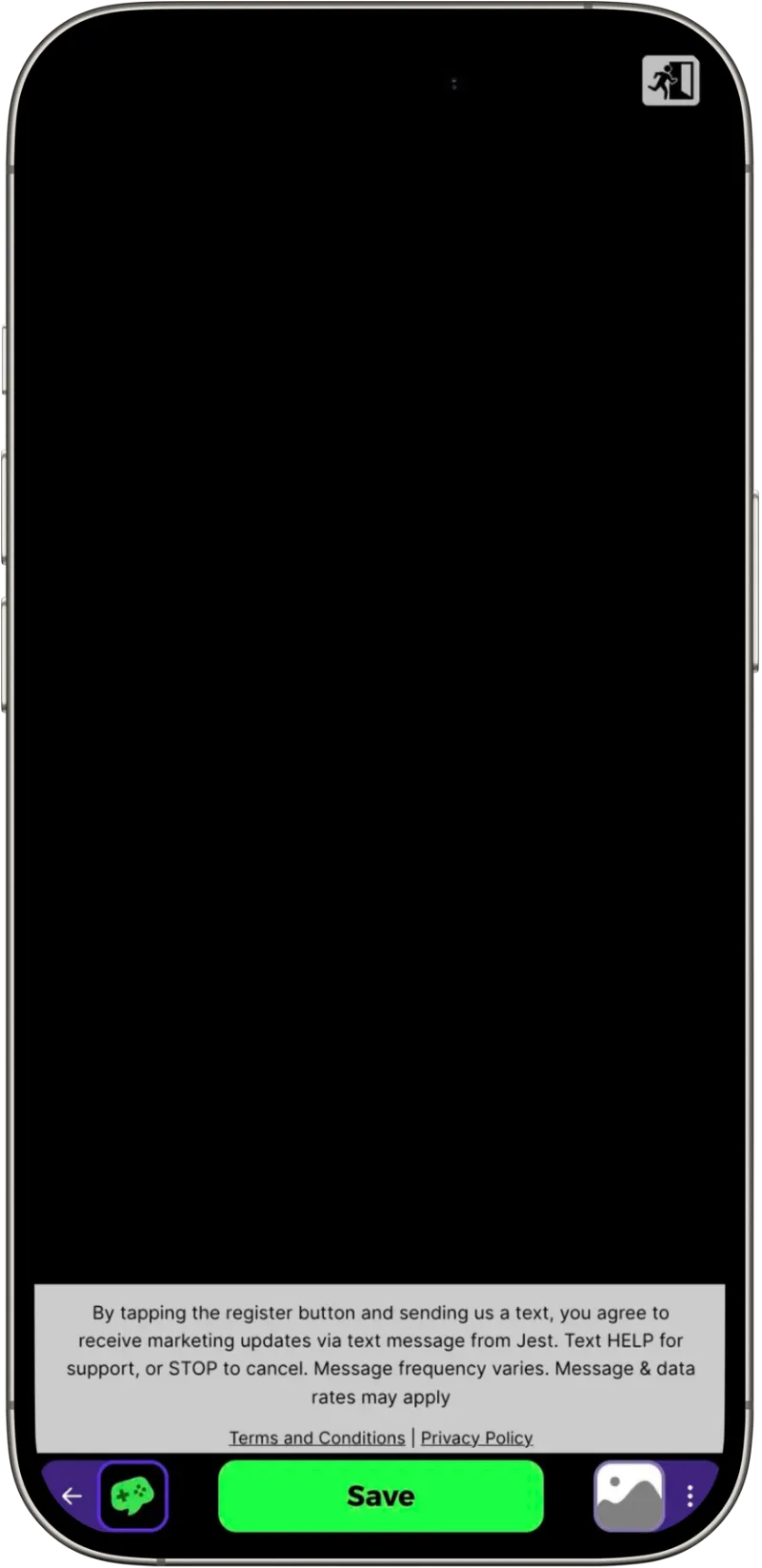
The overlay with legal text and a close button.
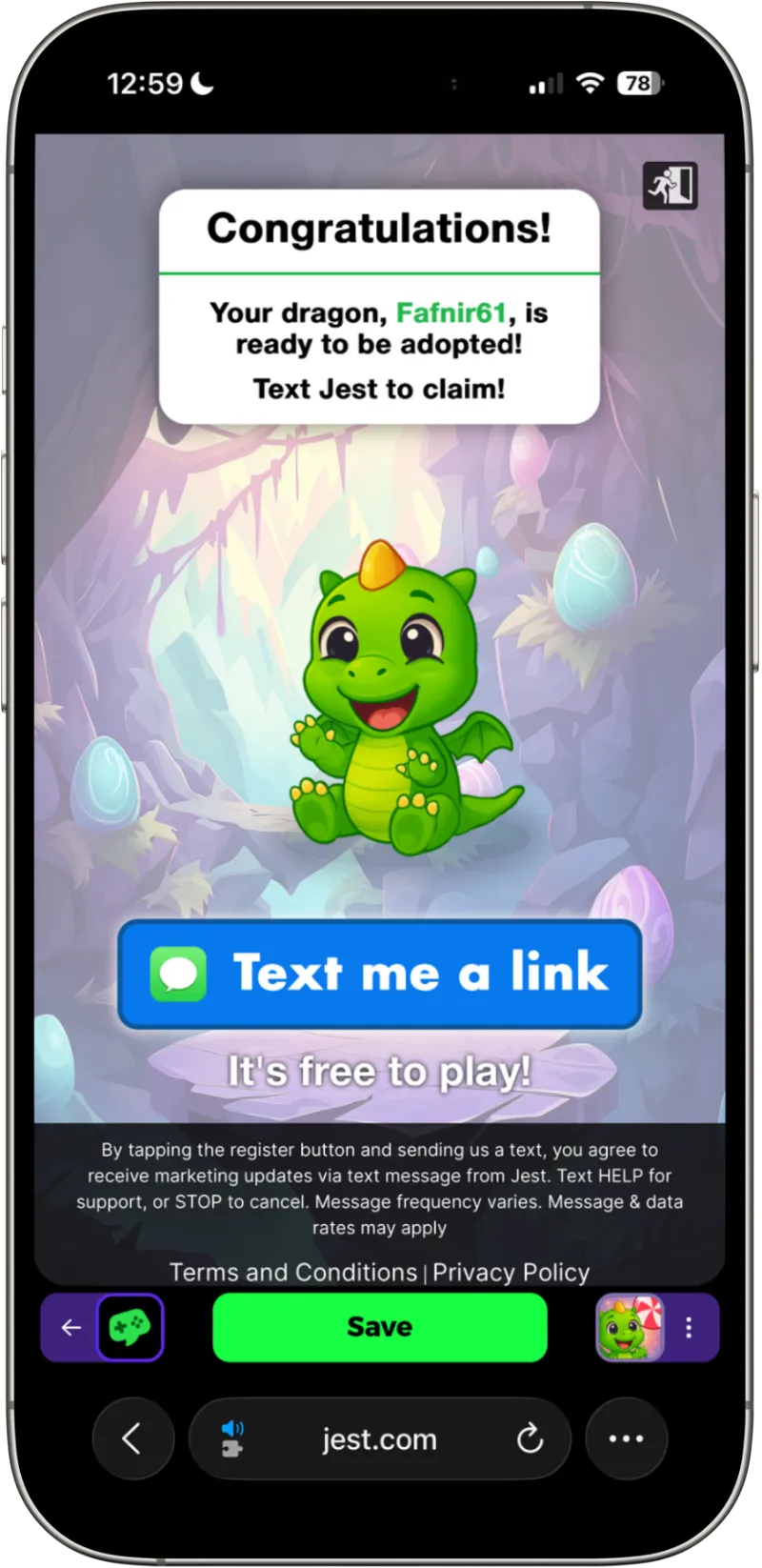
The overlay on top of a game.
To streamline the user experience and maximize conversion, we suggest relying on the platform's built-in close button rather than adding additional exit points to your custom UI.
Show the registration overlay
- HTML5
- Unity
JestSDK.showRegistrationOverlay(options?)
showRegistrationOverlay(
  options?: {
    theme?: "dark" | "light";
    onClose?: () => void;
    entryPayload?: Record<string, unknown>;
    message?: string;
  }
): {
  loginButtonAction: () => void;
  closeButtonAction: () => void;
};
const player = JestSDK.getPlayer();

if (!player.registered) {
  const { loginButtonAction, closeButtonAction } =
    JestSDK.showRegistrationOverlay();

  // Attach these actions to your in-app UI
}
Options:
| Name | Type | Description |
|---|---|---|
theme | "dark" | "light" | Optional. The theme of the registration overlay. Defaults to "dark". |
onClose | () => void | Optional. Callback function to be executed when the overlay is closed. |
entryPayload | Record<string, unknown> | Optional. The entry payload to pass to the app on login. |
message | string | Optional. Text the user's messaging app is pre-filled with, in place of the platform's default wording. Must contain {{registrationCode}} once, kept clear of adjacent words, and stay under 140 characters. |
Returns:
| Name | Type | Description |
|---|---|---|
loginButtonAction | () => void | Function to trigger the login flow from the app UI. |
closeButtonAction | () => void | Function to close the overlay from the app UI. |
JestSDK.Instance.ShowRegistrationOverlay(options)
RegistrationOverlay.Handle ShowRegistrationOverlay(RegistrationOverlay.Options options = null)
Convenience wrapper around JestSDK.Instance.RegistrationOverlay.Show(options). Both forms accept the same options and return the same handle. Throws InvalidOperationException if the player is already registered.
var player = JestSDK.Instance.Player;

if (!player.isRegistered)
{
    var handle = JestSDK.Instance.ShowRegistrationOverlay();

    // Wire these to your in-game UI buttons
    loginButton.onClick.AddListener(handle.LoginButtonAction);
    closeButton.onClick.AddListener(handle.CloseButtonAction);
}
Options:
| Name | Type | Description |
|---|---|---|
Theme | RegistrationOverlay.Theme | Optional. Dark (default) or Light. |
EntryPayload | Dictionary<string, object> | Optional. The entry payload to pass to the app on login. |
OnClose | Action | Optional. Called when the overlay is closed (via either action or the platform's close). |
Returns a RegistrationOverlay.Handle with:
| Member | Type | Description |
|---|---|---|
LoginButtonAction | method | Call from your login button to initiate the registration flow. |
CloseButtonAction | method | Call from your close button to dismiss the overlay. |
OnClose | Action | Event that fires when the overlay is closed (via either action or platform close). |
Set the theme and handle dismissal
In addition to the entry payload, the registration overlay supports a theme option, allowing you to match its appearance to your app. The available themes are dark (the default) and light.
You can also provide an optional on-close callback to know when the user decides to skip. This is triggered when the user dismisses the overlay using the platform's built-in close button, or when your custom UI calls the close action. This is useful for cleaning up or closing any related app UI.
Because the callback handles both scenarios, you don’t need to manage them separately:
- HTML5
- Unity
JestSDK.showRegistrationOverlay({
  theme: "light",
  onClose: () => closeGamePopup(),
});
The same callback can also be wired up via the handle's OnClose event:
var options = new RegistrationOverlay.Options
{
    Theme = RegistrationOverlay.Theme.Light,
    EntryPayload = new Dictionary<string, object>
    {
        { "source", "main_menu" }
    },
    OnClose = () => CloseGamePopup()
};

var handle = JestSDK.Instance.ShowRegistrationOverlay(options);

loginButton.onClick.AddListener(handle.LoginButtonAction);
closeButton.onClick.AddListener(handle.CloseButtonAction);
Custom registration message
When the user taps your login button, their messaging app opens with a message pre-filled with a registration code. By default it is written in the platform's voice:
I would like to register for Jest. My key is A7K2QP
- HTML5
- Unity
You can write it in your app's voice instead. Put {{registrationCode}} where you want the code to appear. It is required and must appear exactly once — the platform swaps in a one-time code there, and that code is how the reply is matched back to this user. Leave a space or punctuation around it, because the code is matched as a word of its own.
Pass message when showing the overlay:
JestSDK.showRegistrationOverlay({
  message: "Let me into Dungeon Crawl! {{registrationCode}} is my key.",
});
The user's messaging app is then pre-filled with:
Let me into Dungeon Crawl! A7K2QP is my key.
showRegistrationOverlay throws straight away if the message is empty, over 140 characters, omits or repeats {{registrationCode}}, contains another {{...}} placeholder, or runs the code into a neighbouring word. Otherwise your text is sent exactly as written, with a full stop added if it doesn't already end in ., ! or ?.
Message pre-fill requirements
To ensure the pre-filled text remains a single text message when using the SMS protocol, you must follow these formatting rules:
- Keep the length under 140 characters. Brevity is best because data shows that shorter messages drive better user engagement.
- Use only plain text and simple punctuation. Avoid any special characters, which are not supported on the legacy SMS messaging protocol.
Not available in the Unity SDK yet. The overlay pre-fills the platform's default message.