Platform login
Guest sessions can be lost when the user closes the game or the browser. To avoid this, you can prompt the player to register or sign in on the Jest platform. Registered players can receive notifications through the Jest platform and are not at risk of losing their progress. See Notifications for more information. Converting players to registered users, so you can retain them is one of the most, if not the most important step of the user funnel. Any gains there translate directly to more users, more retained players and thus more revenue.
The platform will automatically prompt the user to register, which can be disabled if it's not desired. See SDK initialization for more information. Players complete the registration flow via SMS or RCS and are redirected back into the game.
Platform registration
The platform has a built in registration flow that can be triggered by the game. It is visually consistent with the rest of the platform.
This flow is used by the platform for the automatic registration prompt.
Once you've initialized the platform you can trigger the registration flow by calling at the appropriate moment. Only guest players should be prompted to register.
var player = JestSDK.Instance.Player;

if (!player.isRegistered) {
  // Guest player - prompt to register
  JestSDK.Instance.Login();
}
The user can either dismiss the popup or go through the flow. The returned JestSDKTask completes when the popup is dismissed, so you can await it if you want to run code afterwards; fire-and-forget also works.
For already-registered players the task completes immediately without error. Invalid entry payloads fault the returned task rather than throwing synchronously.
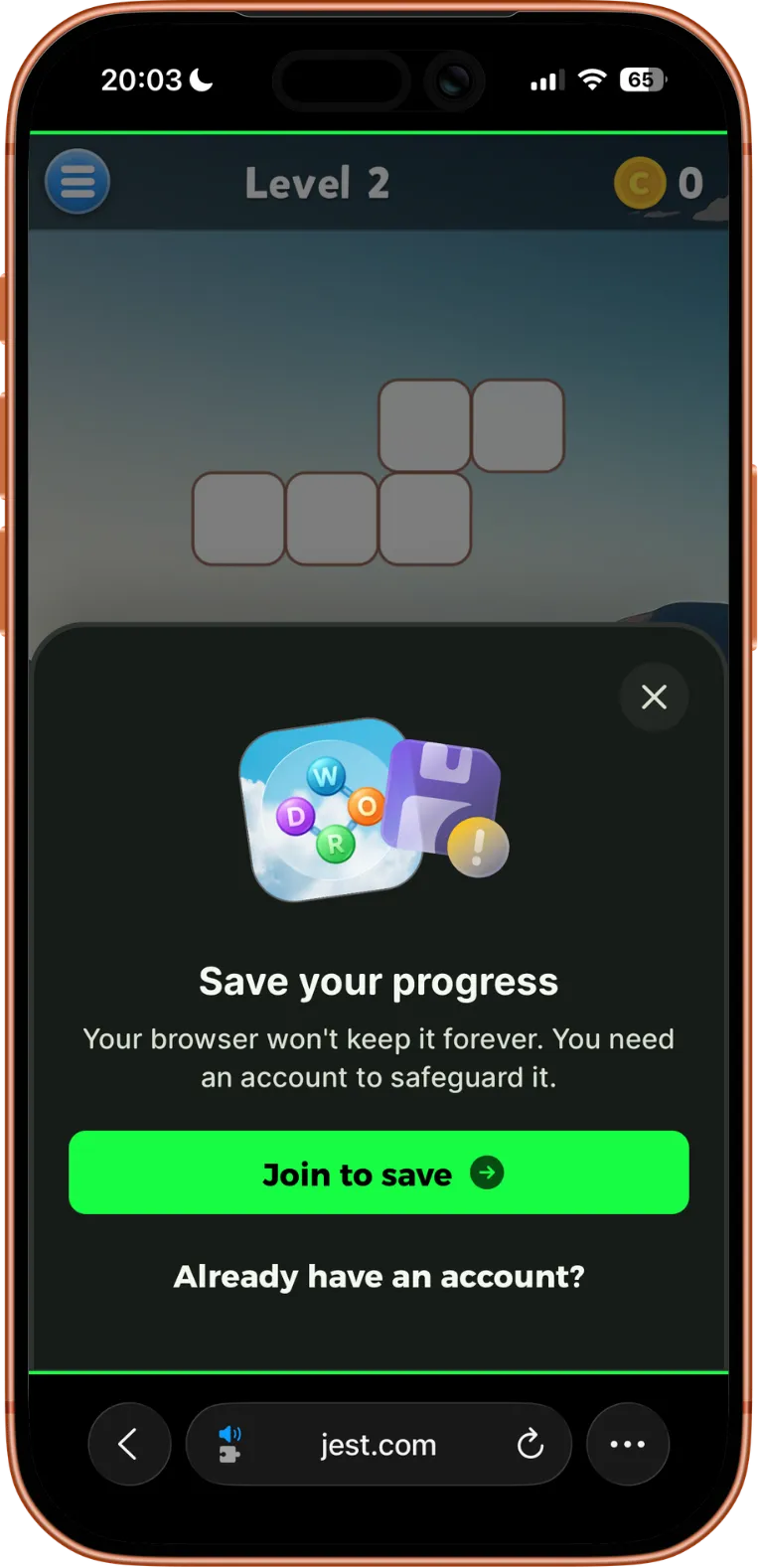
The method supports an optional entryPayload which, if provided, is passed back to the game on login.
var player = JestSDK.Instance.Player;

if (!player.isRegistered) {
  JestSDK.Instance.Login(new Dictionary<string, object>
  {
    { "source", "level_complete" },
    { "level", 5 }
  });
}
JestSDK.Instance.Login()
JestSDKTask Login(Dictionary<string, object> entryPayload = null)
Returns a JestSDKTask that completes when the login popup is dismissed, or immediately if the player is already registered. Awaiting is optional:
await JestSDK.Instance.Login();
// Runs after the player dismisses the login popup.
Options:
| Name | Type | Description |
|---|---|---|
entryPayload | Dictionary<string, object> | Optional. The entry payload to pass to the game on login. |
Customized registration flow
In addition to the default platform popup, the SDK allows you to build a fully customized registration experience using JestSDK.Instance.ShowRegistrationOverlay(). This approach gives you greater control over the UI and lets you better integrate the flow into your game.
All requirements and functionality remain the same as with the platform registration flow. The key difference is that your game is responsible for rendering and managing the user interface.
The platform will still display the required legal text and provide a dismiss button. This overlay is designed to be minimal, unobtrusive, and visually neutral so it fits naturally within your game.
Once triggered, your game is responsible for rendering the rest of the flow, giving you full control over the player experience:
var player = JestSDK.Instance.Player;

if (!player.isRegistered)
{
    var handle = JestSDK.Instance.ShowRegistrationOverlay();

    // Wire these to your in-game UI buttons
    loginButton.onClick.AddListener(handle.LoginButtonAction);
    closeButton.onClick.AddListener(handle.CloseButtonAction);
}
JestSDK.Instance.ShowRegistrationOverlay() is a convenience wrapper around JestSDK.Instance.RegistrationOverlay.Show() — both forms are equivalent. The method throws InvalidOperationException if the player is already registered.
The returned Handle exposes:
LoginButtonAction()— initiates the login flowCloseButtonAction()— closes the overlayOnCloseevent — fires when the overlay is dismissed (via either action or the platform's own close button)
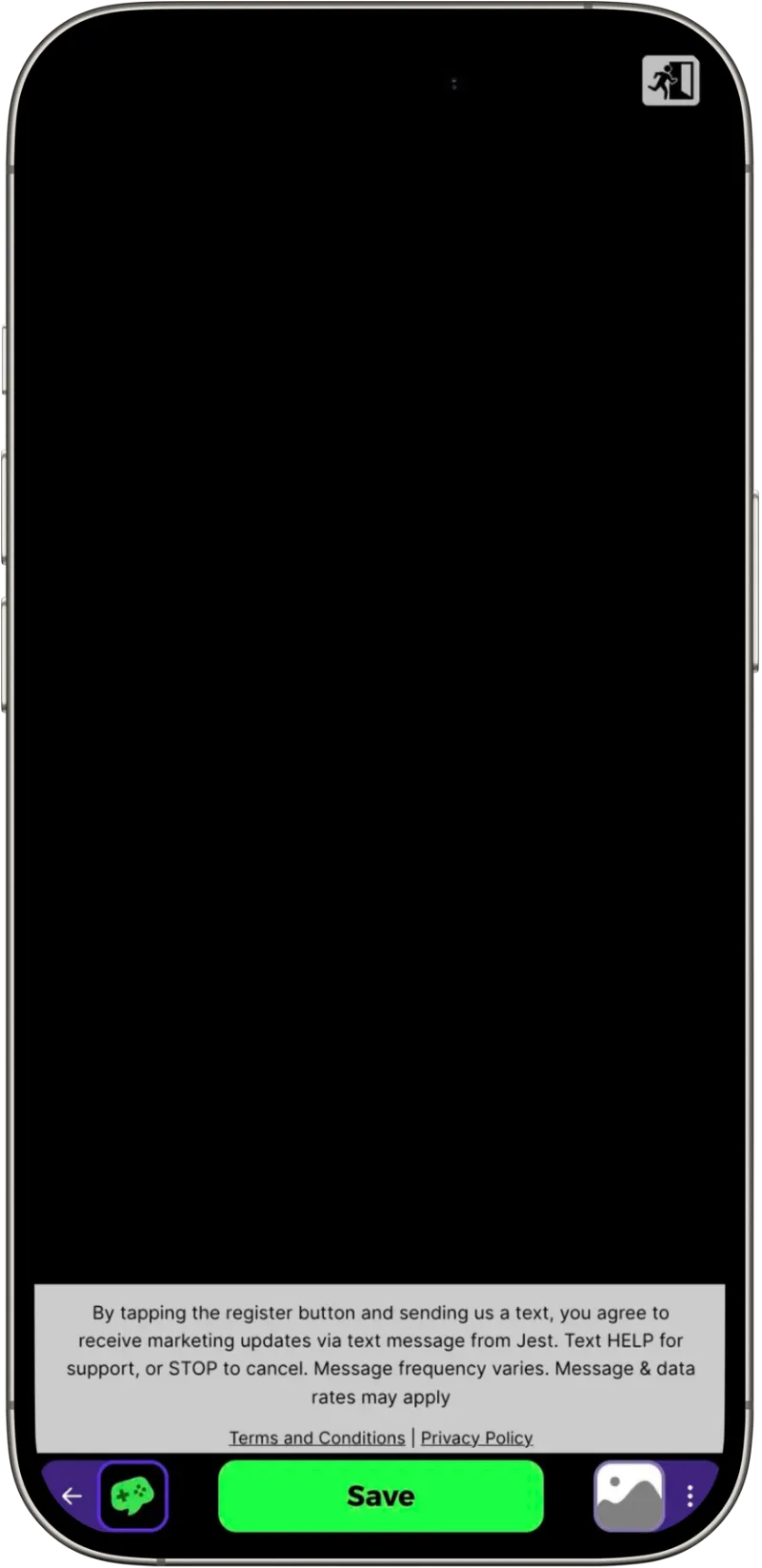
The overlay with legal text and a close button.
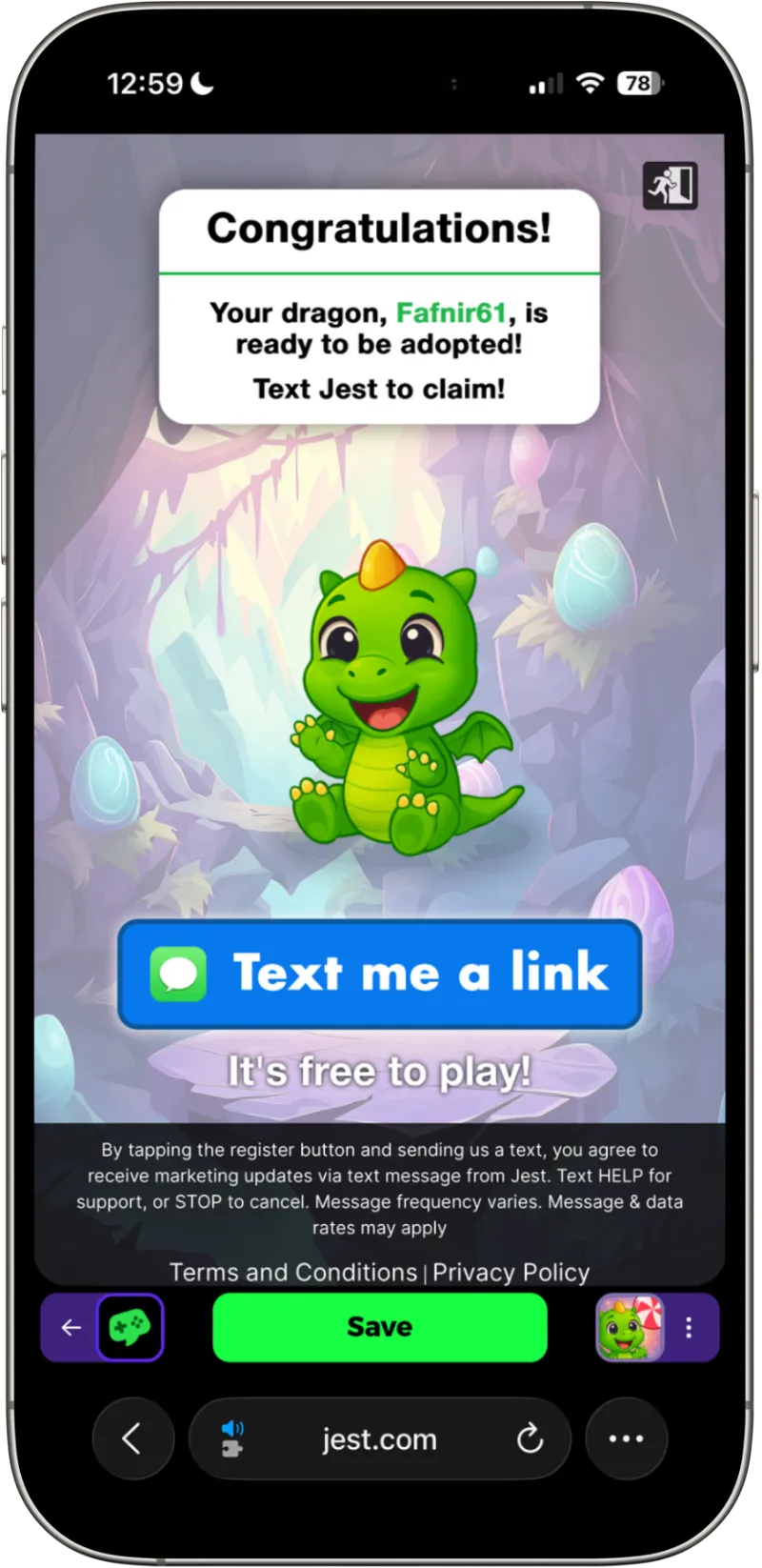
The overlay on top of a game.
The Options object lets you set a Theme (Dark or Light) and an EntryPayload that's passed back to the game after login. You can also provide an OnClose callback that's invoked when the player dismisses the overlay — useful for cleaning up related in-game UI. The same callback can also be wired up via the handle's OnClose event:
var options = new RegistrationOverlay.Options
{
    Theme = RegistrationOverlay.Theme.Light,
    EntryPayload = new Dictionary<string, object>
    {
        { "source", "main_menu" }
    },
    OnClose = () => CloseGamePopup()
};

var handle = JestSDK.Instance.ShowRegistrationOverlay(options);

loginButton.onClick.AddListener(handle.LoginButtonAction);
closeButton.onClick.AddListener(handle.CloseButtonAction);
OnClose fires both when the platform's built-in close button is used and when CloseButtonAction() is called, so you don't need to handle these cases separately.
JestSDK.Instance.ShowRegistrationOverlay()
RegistrationOverlay.Handle ShowRegistrationOverlay(RegistrationOverlay.Options options = null)
Convenience wrapper around JestSDK.Instance.RegistrationOverlay.Show(options). Both forms accept the same options and return the same handle. Throws InvalidOperationException if the player is already registered.
Options:
| Name | Type | Description |
|---|---|---|
Theme | RegistrationOverlay.Theme | Optional. Dark (default) or Light. |
EntryPayload | Dictionary<string, object> | Optional. The entry payload to pass to the game on login. |
OnClose | Action | Optional. Called when the overlay is closed (via either action or the platform's close). |
Returns a RegistrationOverlay.Handle with:
| Member | Type | Description |
|---|---|---|
LoginButtonAction | method | Call from your login button to initiate the registration flow. |
CloseButtonAction | method | Call from your close button to dismiss the overlay. |
OnClose | Action | Event that fires when the overlay is closed (via either action or platform close). |